Everything in the bridge
Prokamo makes the procedural animation in your browser. The bridge puts it on your characters in the open editor, live or as assets, and brings your own characters and animations back the other way.
Live Link PRO
Your animation plays on characters in the level as you edit it, smooth at the editor's own frame rate.
Sequencer link PRO
Link an Animation section, layer on it in Prokamo while Sequencer's playhead drives, then bake it back.
Moving targets PRO
Reach for, look at and stand on actors in the level. Where Sequencer moves them, Prokamo follows.
Live editing PRO
Connect an Animation Sequence and every edit in Prokamo goes into it while you Play in Editor.
Control Rig PRO
An animator's Control Rig for any creature you rig in Prokamo, built in the editor in one click.
Send to Unreal
Every animation tab at once, each its own asset. Rigged characters and gear too.
Add to Sequencer
Sent animations land on the character selected in Sequencer, on a new row at the playhead.
Send to Prokamo
Right-click a character, animation or mesh in the Content Browser to animate, play or rig it in Prokamo.
PRO features need a Prokamo Pro subscription on prokamo.com. The plugin is free. Sending counts as an export: 10 a month free for personal use, unlimited with Pro.
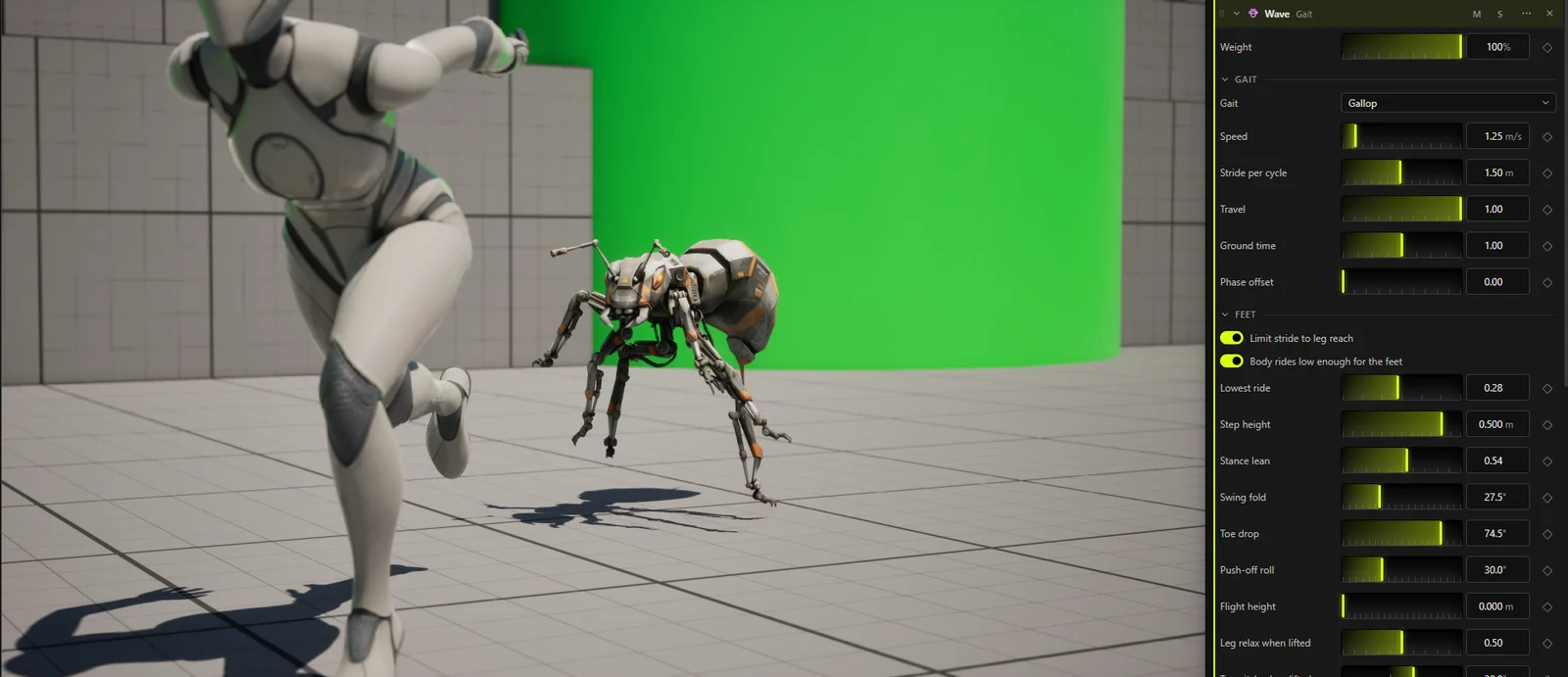
Edit animations in PIE
Play in Editor while you edit your animations in Prokamo. Tune your enemy's gallop as it chases you down: a moment after you let go of a slider, the game has it. No export, no reimport, no restart.
Live Link puts Prokamo's pose on any character in the level as you work. Happy with it? Bake it, send it, or record it with Take Recorder.
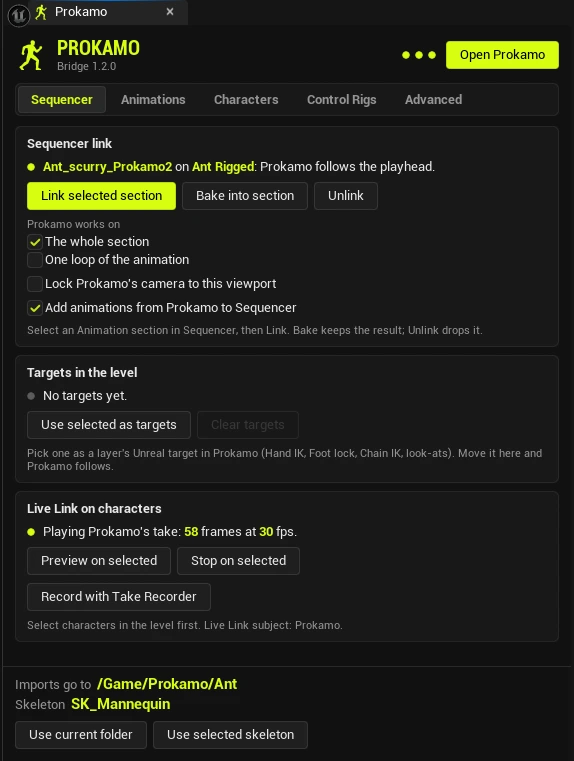
Sequencer drives, Prokamo layers
Link a character's Animation section and it opens in Prokamo as the base clip. Scrub in Sequencer and Prokamo follows the playhead. Add weight, noise, a glance or a reach on top, and the section plays the result.
Pick actors in the level as targets: a hand finds the railing, the eyes find the camera, even while Sequencer moves them. Bake into section turns it all into a new Animation Sequence.
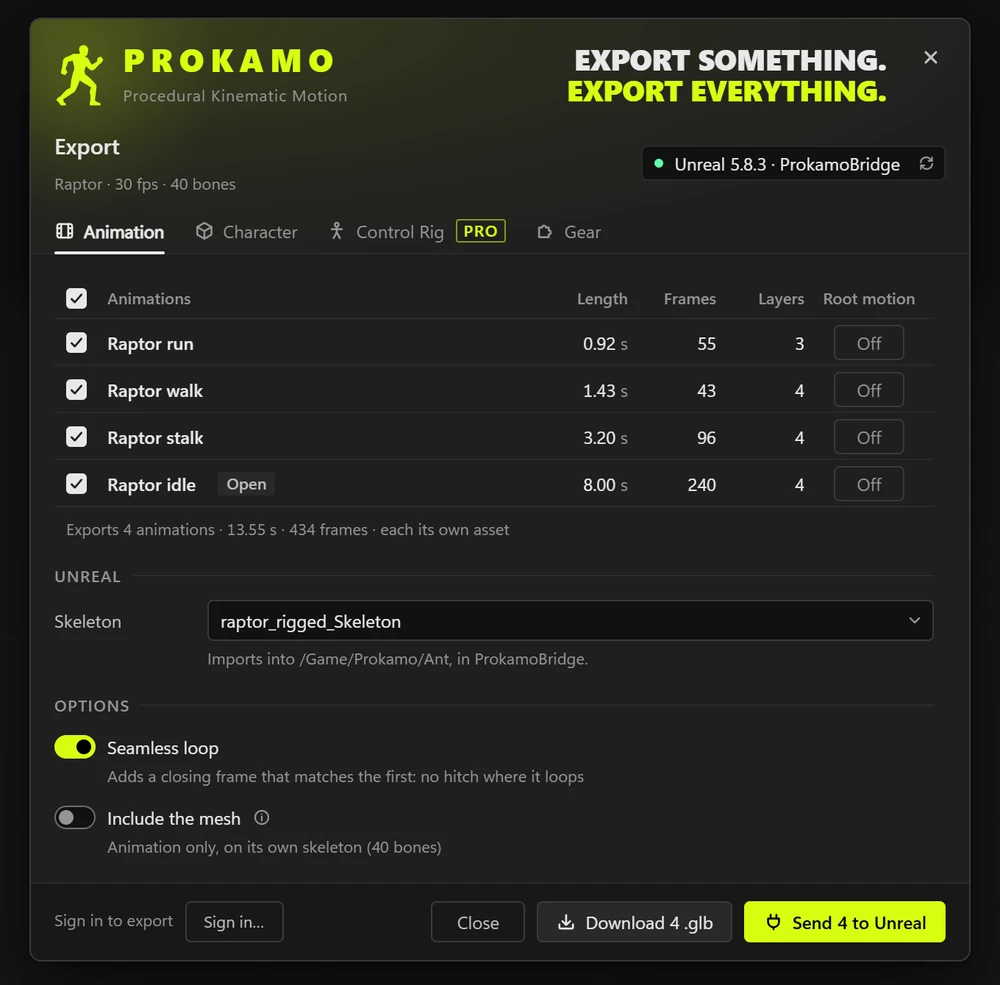
Send everything at once
Tick every animation tab in the Export dialog and press Send to Unreal: each lands as its own Animation Sequence on your skeleton, in the folder you choose.
With a character selected in Sequencer, the animation goes straight onto it, on a new row at the playhead.
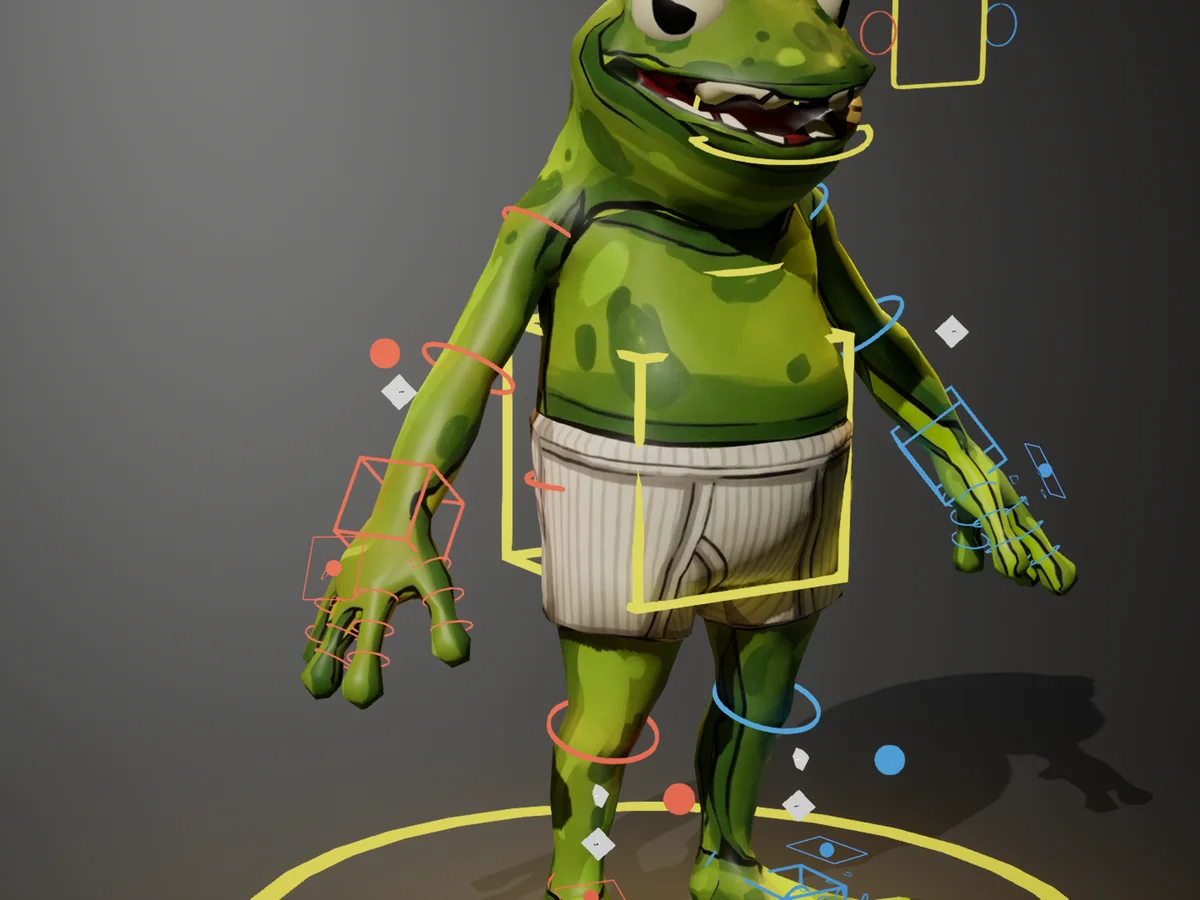
A rig for any creature
Rig a two-legged hero or an eight-legged beast in Prokamo's Rig tab, then one click builds an animator's Control Rig for it in Unreal:
- IK legs with a hock control, and IK arms
- fingers, toes and claws
- tails and chains with curl and curve IK
- eyes that look at a target
- a Backwards Solve, so you can bake animation onto it
The Prokamo panel
Everything the bridge does in Unreal lives in one panel: Window > Prokamo, or the Prokamo button on the level editor's toolbar. It wears the theme you picked in Prokamo (Jolt here), with the things that matter in your accent color.
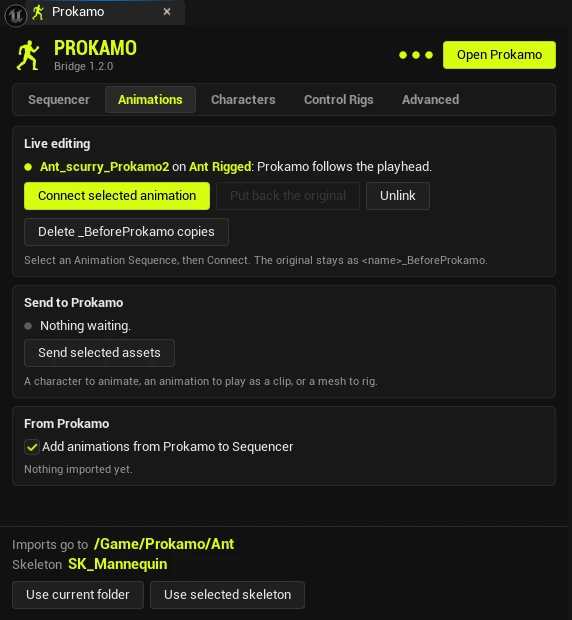
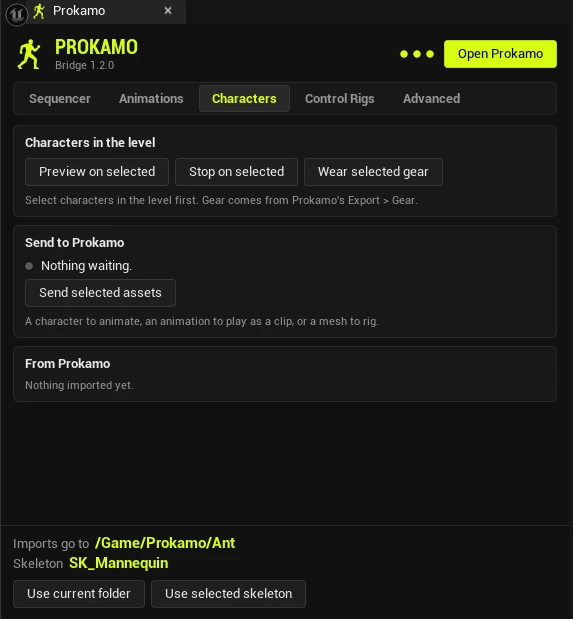
Sequencer
Link a section, choose what Prokamo works on, targets, view lock, Bake. Live Link on characters and Take Recorder.
Animations
Live editing, Put back the original, the _BeforeProkamo cleanup, recent imports and Send to Prokamo.
Characters
Wear gear on characters in the level, and send characters to Prokamo.
Control Rigs · Advanced
The last rig built and whether rigs can build. The connection, diagnostics, Copy report and Settings.
The header's three dots show the bridge, Prokamo and Live Link: lit when they're working. Along the bottom of every tab: where imports go and the default skeleton, with Use current folder and Use selected skeleton to change them.
Get started
Five minutes from download to your first animation in Unreal.
Install the plugin
Fab (recommended) installs it into the engine, for every project, and new versions of the Bridge come to you there as updates.
Or download a zip and unzip it into your project's Plugins folder (make it if it's missing), so you get MyProject/Plugins/ProkamoBridge/ProkamoBridge.uplugin. Prebuilt loads as is, even in a Blueprint-only project; Source builds on first launch and needs Visual Studio 2022 with the Unreal workload. A zip is updated by hand.
Open your project
The bridge starts on its own. Open the panel from Window > Prokamo or the Prokamo button on the level editor's toolbar.
The first dot in its header lights up, and the Advanced tab says Bridge listening on 127.0.0.1:41777. Not there? Edit > Plugins, search Prokamo, enable it, restart.
Open Prokamo
Open prokamo.com in Chrome, Edge or Firefox on the same computer, and press Export (Ctrl+E). The top of the dialog says Unreal 5.8 · YourProject: you're connected.
Sign in to export (free accounts get 10 exports a month). PRO features need Prokamo Pro.
Requirements
- Unreal Engine 5.8 on Windows. Editor only: nothing ships in your packaged game.
- Epic's Interchange, glTF Exporter, Live Link, Level Sequence Editor and Takes plugins. All are on by default, and enabling Prokamo Bridge turns them on.
- For one-click Control Rigs: Epic's Python Editor Script Plugin (Beta). Turn it on yourself in Edit > Plugins and restart. Prokamo Bridge never turns it on.
- A Prokamo account (free, email sign-in). Every animation sent counts as an export: 10 a month for personal use, unlimited with Pro.
- Prokamo Pro for Live Link, the Sequencer link, targets, live editing and Control Rigs.
- Prokamo and Unreal on the same computer. The bridge only listens on your own machine.
- On Unreal 5.4 to 5.7? Bridge 1.0.2 still does Send to Unreal: 5.7 prebuilt, or source for 5.4, 5.5, 5.6 and 5.7.
Recipes: how to do it
Real jobs, start to finish. Each one lists what it uses, then every click on both sides. UE means in Unreal, PK means in Prokamo.
Your first animation in Unreal, on the character in your shot
Send to UnrealAdd to SequencerFree
- UE: open your Level Sequence and click the character (Manny, or any character on the
SK_Mannequinskeleton) in Sequencer's track list. Put the playhead where the animation should start. - PK: make the animation: a preset from the Welcome screen (the Walk is a good start), or your own layers.
- PK: press Export (Ctrl+E). On the Animation tab, your tab is ticked. Set its Root motion chip: On if the root should carry the travel, Off to keep it in the hips.
- PK: under Unreal, check the Skeleton (SK_Mannequin). Leave Seamless loop on for cycles.
- PK: press Send to Unreal. A few seconds later it says Imported into Unreal: ... added to ... in Sequencer at frame ...
- UE: the animation is in
/Game/Prokamoand on your character's Animation track: a new top row at the playhead, selected. Undo takes it off the track.
Nothing selected in Sequencer, or no sequence open? It is simply imported and opened. Turn the Sequencer step off with the Add animations from Prokamo to Sequencer toggle in the panel.
From a mesh to a boss: rig a creature, animate it, give it a Control Rig
Rig tabSend to UnrealMake Control Rig PRO
- Get the mesh in. PK: Rig tab, step Mesh, add your
.glb. Or from UE: right-click a Static Mesh in the Content Browser > Prokamo > Send to Prokamo, then on PK's From Unreal card press Rig it. - PK: rig it through the steps: Height, Skeleton (pick the body plan and parts: legs, arms, tail, wings, eyes...), Fit (drag the handles onto the mesh), Skinning, Weights.
- PK: on the last step, Export, press Send to Unreal. UE gets
<Name>_rigged: a Skeletal Mesh with its Skeleton, materials and textures. - PK: animate it, one animation tab per move: an idle, a walk (Gait), a charge, a roar. Layers stack: Gait, Weight, Noise, Tail, Eyes look-at...
- PK: Export > Animation: tick every tab (the header checkbox ticks them all), name each one, set the Root motion chips. Under Unreal, pick
<Name>_rigged_Skeleton. Press Send N to Unreal: each lands as its own Animation Sequence. - PK, Pro: Export > Control Rig > Make in Unreal. Unreal builds the rig next to the mesh in about a minute, with IK legs and arms, fingers, tail curl, eyes that aim and a Backwards Solve. Hand-key the big attacks in Sequencer with it.
Skipped step 3? In step 5 pick Create new "<Name>_rigged" as the skeleton: the first send brings the character along, and the rest go onto its new skeleton.
Polish a cinematic shot: layer on a Sequencer section, then bake it
Sequencer link PROMoving targets PROBake into section
- UE: block the shot in a Level Sequence: the character on its Animation track with the animation you have. Open Prokamo in the browser too.
- UE: click the character's Animation section, then in the panel's Sequencer tab press Link selected section. The section goes muted and the character plays Prokamo instead.
- PK: the animation arrives as the base clip, fitted to the timeline (Linked from Sequencer). If Prokamo has another character open, it asks: Open <character> brings yours over from Unreal.
- UE: under Prokamo works on, pick The whole section (every loop, as Sequencer plays it) or One loop of the animation.
- PK: add layers on top: Weight to sell the steps, Noise for life, Head look-at for a glance. Scrub or play in Sequencer: Prokamo follows the playhead, and Unreal shows the result.
- UE: for a glance at a moving car or a hand on a railing: select those actors in the level and press Use selected as targets. PK: in the layer (Head look-at, Hand IK, Foot lock, Chain IK, Eyes look-at), set Unreal target. Keyed moves in Sequencer are followed.
- UE, optional: tick Lock Prokamo's camera to this viewport to see the same angle in both.
- UE: Bake into section. A new
<Animation>_Prokamoappears next to the original and the section plays it. Save, and render with Movie Render Queue.
Changed your mind? Undo after Bake puts the old animation back. Unlink instead of Bake drops Prokamo's layers and the section plays its own animation again.
Tune a gameplay animation while you play
Live editing PROPlay in Editor
- UE: in the Content Browser, right-click the Animation Sequence your character plays in game (a run, an attack) > Prokamo > Connect to Prokamo (live). Or select it and press Connect selected animation in the panel's Animations tab.
- UE: a copy as it is now is kept beside it as
<name>_BeforeProkamo. Press Open Prokamo on the notification. - PK: the animation arrives as the base clip (Connected from Unreal). Add layers on top: more arm swing, Weight in the landings, a Smoothing pass.
- UE: press Play. Each edit in Prokamo is written into the animation as it settles, so the game shows it a moment later. Keep playing and keep tweaking.
- UE: happy? Save the animation (Prokamo marks it changed, it doesn't save for you), then Unlink: your edits stay.
- UE: not happy? Put back the original restores it from the copy. When you're done with the copies, Delete _BeforeProkamo copies finds them all and Unreal asks before deleting.
The animation must be your project's own. An engine or plugin animation has to be duplicated into the project first. Edits replace the bone tracks; notifies and curves stay.
Animate a character you already have in Unreal
Send to ProkamoSend to UnrealFree
- UE: right-click the character's Skeletal Mesh in the Content Browser > Prokamo > Send to Prokamo, then Open Prokamo on the notification.
- PK: the From Unreal card shows it. Press Load character.
- PK: animate it. Got an animation for it already? Send that the same way and press Add as clip: it plays in an Animation clip layer you can layer on.
- PK: Export > Animation, pick the character's own Skeleton under Unreal, and Send to Unreal.
A character that came from Prokamo keeps its Prokamo setup (facing, stance, creature parts) in Unreal, so sending it back brings all of that along.
See it live on characters in your level, and record a take
Live Link PROTake Recorder
- UE: select one or more characters in the level. Their bones must have the same names as the character in Prokamo.
- UE: panel's Sequencer tab > Live Link on characters > Preview on selected (or Tools > Prokamo Bridge > Preview Prokamo Live Link on selected).
- PK: Settings (Ctrl+,) > Unreal > turn on Stream to Unreal (Live Link). It says Streaming N bones as "Prokamo".
- PK: work as usual. While you drag a slider Unreal shows the live pose; a moment after you let go, Prokamo sends the whole take and Unreal plays it smoothly at its own frame rate.
- UE, to record: Record with Take Recorder opens Take Recorder with Prokamo as a Live Link source. Press Record there while Prokamo plays.
- UE, when done: Stop on selected. Their Animation Blueprint was set aside: use Undo on the Preview to get it back.
Keep Prokamo's tab in view while it streams: browsers slow down hidden tabs. A linked Sequencer section keeps streaming either way.
Fit a helmet in Prokamo, wear it in Unreal
GearFree
- PK: Rig > Fit gear: add the helmet, fit it to the head, then in 4 · Export press Send to Unreal. The first time, Prokamo asks you to pick the character's Skeleton under Unreal in Export > Gear.
- UE: the helmet arrives as a Skeletal Mesh on the character's Skeleton. Sending it again updates it in place, on everything wearing it.
- UE: select the helmet in the Content Browser and the characters in the level, then press Wear selected gear in the panel's Characters tab.
- UE: the helmet follows their pose, in every animation. Undo takes it off.
Gear needs a skeleton already in the project: send the character first. A whole outfit? Export > Gear sends every piece at once.
The manual
Every feature, every button. Open the one you need.
The bridge and the panel
The bridge starts with the editor (Auto start). It listens on 127.0.0.1:41777, on your own machine only.
- Open the panel: Window > Prokamo, the Prokamo toolbar button, or Tools > Prokamo Bridge > Prokamo panel. It remembers the last tab you used in each project.
- The header shows the bridge version and three dots: the bridge (listening or stopped), Prokamo (heard from in the last 10 seconds) and Live Link (streaming or idle). Lit means working, red means trouble. Open Prokamo opens the Prokamo page that last used the bridge.
- Start and stop: Advanced tab > Start bridge / Stop bridge, or Tools > Prokamo Bridge, where the entry reads Stop bridge (listening on 127.0.0.1:41777) while it runs.
- The Tools menu (Tools > Prokamo Bridge) also has: Preview / Stop Prokamo Live Link on selected, Link selected Sequencer section to Prokamo, Unlink from Prokamo, Bake Prokamo into the linked section, Settings... and Open prokamo.com.
In Prokamo, the Export dialog's header says Unreal 5.8 · YourProject when it finds the editor, or Unreal not running with a Check again button. Settings > Unreal shows the same, with where imports go, the plugin downloads, and the port under Advanced.
Prokamo only looks for Unreal in the background (for From Unreal cards and the theme) in a browser where it has found the bridge before, and only while its tab is in view. Open Export once, or use Open Prokamo in Unreal, and it remembers.
Send to Unreal: animations
Prokamo: Export in the top bar (Ctrl+E), Animation tab.
- Pick animations. One row per animation tab. The open tab is ticked (marked Open); tick more, or use the header checkbox for all. Empty tabs say No layers.
- Name them. The name field is the asset's name in Unreal, and renaming it renames the tab. Two ticked with the same name? Prokamo asks you to rename one.
- Root motion, per row: On, the root carries the travel; Off, the travel stays in the hips. Prokamo remembers your choice per animation. On sets Enable Root Motion on the Unreal asset.
- Skeleton (under Unreal): every Skeleton in your project, plus Create new "<Name>_rigged" (mesh + skeleton) for a character that isn't there yet. Prokamo remembers the pick per project.
- Seamless loop (on): adds a closing frame that matches the first, so a cycle has no hitch. Off: it ends on the last frame as played.
- Include the mesh (off): animation only is the small file. Humanoid animations are retargeted to the UE5 Mannequin's proportions; creatures keep their own skeleton. Create new always sends the mesh.
Press Send to Unreal (or Send N to Unreal). Each animation is baked and sent in turn: Sending 2 of 4: Raptor walk.... Each lands as its own Animation Sequence in the import folder (/Game/Prokamo unless you change it), and each counts as one export.
Add to Sequencer (on): with a Level Sequence open, the animation goes on the character selected in Sequencer, or a selected level actor bound in it, as long as it's on the same Skeleton. It takes a new top row on the character's Animation track at the playhead, rounded to a frame; the rows below move down one. Undo removes it. Otherwise it's imported, opened (Open after import) and selected in the Content Browser (Sync Content Browser).
The panel's Animations tab lists the last five imports under From Prokamo: click one to find it in the Content Browser.
Send to Unreal: characters
Two ways to send a rigged character, both making <Name>_rigged: a Skeletal Mesh with its Skeleton, materials and textures.
- Export > Character tab: the character's card, with its kind, bones and vertices. Press Send to Unreal, or Download .glb for Blender or another engine. Manny has no card: Unreal already has him as SKM_Manny.
- Rig tab, last step Export: Send to Unreal right after rigging. Bind the character in Skinning first.
Sending again rebuilds the mesh in place: its editor windows close, and characters in the level (and in Play in Editor) pick up the new mesh. Your animations stay on the same Skeleton.
Then send its animations with Export > Animation, picking <Name>_rigged_Skeleton.
Gear: helmets, packs, boots
Gear is fitted in Prokamo (Rig > Fit gear, or a .glb in a Gear layer) and goes to Unreal as a Skeletal Mesh on the character's Skeleton.
- Export > Gear: every piece with its fit, size and bones. Each row has its own Unreal button, and the footer sends all of them, or just the worn ones. Pick the character's Skeleton under Unreal first: gear goes onto a skeleton already in the project.
- Rig > Fit gear > 4 · Export > Send to Unreal sends the piece you're fitting, onto the Skeleton you last picked in Export. A piece sent before updates in place, on everything wearing it.
Wearing it in Unreal: select the gear's Skeletal Mesh in the Content Browser and the characters in the level, then panel > Characters tab > Wear selected gear. Each piece goes on the body that shares its Skeleton and follows its pose. Characters on another Skeleton are left as they were. Undo takes it off.
Send to Prokamo
Bring your own assets into Prokamo: a Skeletal Mesh to animate, an Animation Sequence to play as a clip, a Static Mesh to rig or carry.
- UE: right-click them in the Content Browser > Prokamo > Send to Prokamo. Or select them and press Send selected assets in the panel's Animations or Characters tab. Or the console:
Prokamo.SendToProkamo /Game/Folder/Asset. - UE: the notification says Sent ... to Prokamo. Press Open Prokamo, or switch to your Prokamo tab.
- PK: a From Unreal card shows each asset, with its kind and size:
- Skeletal Mesh: Load character.
- Animation: Add as clip, into a new Animation clip layer.
- Static Mesh: Rig it (opens the Rig tab with it), or Add as prop (pick the bone it follows in its layer).
The × on a card dismisses it, and Unreal forgets it. Opened from Unreal's button, Prokamo's Welcome screen shows a From Unreal strip instead; if nothing arrives in a few seconds, it offers Look again.
Waiting assets live in Saved/ProkamoBridge/Outbox until Prokamo takes them, and are cleared when the bridge restarts. Sending the same asset again replaces the waiting copy.
Live Link PRO
Prokamo's pose plays on characters in your level as the Live Link subject Prokamo.
- PK: Settings > Unreal > Live Link > turn on Stream to Unreal (Live Link). The line under it says Streaming N bones as "Prokamo".
- UE: select characters in the level, then panel > Sequencer tab > Live Link on characters > Preview on selected. Each of their Skeletal Meshes gets a Live Link instance. Undoable.
- Anything else using the subject Prokamo plays it too: a Live Link Pose node in your own Animation Blueprint, or a Take Recorder source.
How it plays: while you drag a slider, Prokamo sends live poses. About a third of a second after you stop, it bakes the whole animation (the take) and sends it, and Unreal plays the take itself every editor frame, blended between frames. It follows Prokamo's playhead, or Sequencer's when a section is linked. The panel says which: Playing Prokamo's take: N frames at F fps, or Live poses (N/s) while Prokamo works out an edit.
Bones are matched by name, so the character in Unreal needs the same bone names as the one in Prokamo: send the character from Prokamo, or bring yours over with Send to Prokamo.
Stop on selected takes the selected characters off Live Link. Their Anim Class is cleared rather than restored; to get an Animation Blueprint back, Undo the Preview instead.
Record with Take Recorder (Sequencer tab) opens Take Recorder with Prokamo as a Live Link source: press Record there while Prokamo plays.
Prokamo's tab has to be in view to stream its own playback. A linked Sequencer section keeps streaming either way. Full speed in the background keeps Unreal running at full speed while you work in the browser.
Sequencer link PRO
Layer on an animation exactly where it plays in your shot. Sequencer's playhead drives Prokamo; Prokamo's layers drive the character.
- UE: open the Level Sequence and click a character's Animation section. The playhead should be inside its range so the character exists.
- UE: panel > Sequencer tab > Link selected section. The section is muted while it's linked, and the character plays Prokamo instead. One link at a time.
- PK: with its tab in view, Prokamo opens the animation as a base Animation clip layer (looping, root motion on), fits the timeline to it, and starts streaming. Other layers in that tab are muted so nothing changes the clip: Unmute them, or add new layers on top.
Wrong character open in Prokamo? If the clip's bones don't match, Prokamo asks <clip> is for <character>: Open <character> brings that character over from Unreal, Keep stays with what you have (the clip won't move it).
Prokamo works on (panel):
- The whole section (default): Prokamo's timeline is the section. The animation loops in it as Sequencer loops it, targets move across all of it, and Bake writes all of it. It needs a section with a fixed start and end and a constant play rate.
- One loop of the animation: Prokamo works on one pass, baked as a loop.
Changing it, or trimming the section, re-fits Prokamo's timeline straight away.
Following: while Sequencer plays, Prokamo plays at its rate (the section's play rate times Sequencer's speed) and corrects any drift. Paused or scrubbing, Prokamo holds exactly where Unreal is. Outside the section it holds the first or last frame.
View lock: Lock Prokamo's camera to this viewport puts Prokamo's camera where Unreal's active viewport is, with its field of view. Moving Prokamo's camera unlocks it. Prokamo has the same switch in Settings > Unreal.
Bake into section saves Prokamo's result as a new Animation Sequence, <Original>_Prokamo, next to the original, puts it on the section and ends the link. Baking the whole section also resets the section's play rate to 1 and its offsets to 0, since the loops are in the bake. Undo puts the old animation back. Save to keep it.
Unlink ends the link without baking: the section plays its own animation again and the character gets its own setup back. The link also ends if you delete the section or turn it back on.
Targets in the level PRO
Actors in your level become targets Prokamo's layers can reach, look at or stand on, with a section linked.
- UE: select up to eight actors: a prop, a ledge, a camera, another character. Panel > Sequencer tab > Use selected as targets. Each press replaces the set; Clear targets empties it.
- PK: in a layer, set Unreal target to one of them:
- Hand IK: the hand goes to it.
- Head look-at, Eyes look-at (creatures): held on it, no wandering.
- Foot lock (people and creatures): the feet stand on it, stance kept.
- Chain IK: the chain's end reaches it.
Moving targets: each target is read at every frame of the range by evaluating Sequencer, relative to the character at that frame, so keyed moves are followed. They are read again a moment after you change keys, the range or the setting, or move a target or the character by hand while Sequencer is paused (not during playback). Bake keeps them.
Live editing PRO
Edit an Animation Sequence in Prokamo while the game runs. Each edit is written into the asset as it settles.
- UE: right-click the Animation Sequence > Prokamo > Connect to Prokamo (live), or select it and press Connect selected animation (Animations tab).
- UE: the first time, a copy as it is now is kept in the same folder:
<name>_BeforeProkamo. - PK: it arrives as the base clip (Connected from Unreal). Layer on it.
- UE: Play in Editor shows each edit a moment after you make it. The asset is marked changed; save it to keep it.
- Put back the original restores it from its
_BeforeProkamocopy. - Unlink ends it and keeps Prokamo's edits in the animation.
- Delete _BeforeProkamo copies finds every copy in the project and deletes them, after Unreal's own confirmation. A connected animation's copy stays.
Only your project's own animations connect: duplicate an engine or plugin animation into the project first. Prokamo replaces the bone tracks; notifies and curves are kept.
Control Rigs PRO
An animator's Control Rig for a creature you rigged in Prokamo, built in Unreal: IK legs with a hock control, IK arms, fingers and toes, tails and chains with curl and curve IK, jaws, eyes that aim at a target, and a Backwards Solve for baking animation onto it.
- UE, once: Edit > Plugins > Python Editor Script Plugin on, then restart. Prokamo Bridge never turns it on for you.
- PK: load the creature, Export > Control Rig. The card lists what the rig will have and says Builds in your Unreal project.
- PK: Make in Unreal. If the character isn't in the project yet, Prokamo sends it first.
- UE: Unreal is busy for about a minute and shows its own progress bar. Then Prokamo: CR_... is ready (N controls), and the rig is selected in the Content Browser.
No Python, or building turned off? The button becomes Make Control Rig and saves a script. Run it in Unreal with the character's Skeletal Mesh selected: Tools > Execute Python Script.
The panel's Control Rigs tab shows whether rigs can build, the last rig made, and the Build Control Rigs sent from Prokamo switch.
The first time a rig opens, Unreal compiles it: give it a minute. Keep the Control Rig graph closed while you animate in Sequencer; an open graph makes the editor hitch. Manny already has Epic's rig, and machines don't get one yet.
Theme, import folder, Advanced tab
Theme. The panel wears the theme you picked in Prokamo, and its toolbar and menu icons take your accent color. Pick another theme in Prokamo and the panel changes with it, while Prokamo is open. It's the same in every project. Jolt until Prokamo sends one.
Import folder, along the bottom of every tab: Imports go to the folder and the default Skeleton.
- Use current folder: the folder open in the Content Browser (under
/Game). - Use selected skeleton: the Skeleton selected in the Content Browser, or a selected Skeletal Mesh's.
Advanced tab.
- Connection: whether the bridge is listening and Prokamo connected, and the Start / Stop button.
- Live Link and logging: Full speed in the background, Play Prokamo's take, Log every bridge request, and a live readout of requests, poses, the take and the linked section.
- Copy report puts that readout on the clipboard for a bug report. Reset Live Link restarts the source, and Prokamo sends its skeleton and take again. Open Output Log, Settings and Help (this page).
Settings
Edit > Editor Preferences > Plugins > Prokamo Bridge. The panel's Advanced tab (Settings at the bottom) and Tools > Prokamo Bridge > Settings... open the same page.
| Setting | Default | What it does |
|---|---|---|
| Port | 41777 | The loopback port the bridge listens on. Prokamo's Settings > Unreal > Advanced > Port must use the same number. Only one editor at a time can hold a port. After changing it, stop and start the bridge. |
| Auto start | on | Start listening as soon as the editor opens. |
| Target folder | /Game/Prokamo | Where imported assets land. The panel's footer shows it. |
| Target skeleton | SK_Mannequin | The skeleton animations go onto when Prokamo doesn't pick one, and the one its Export dialog preselects for humanoids. Point it at your own character's skeleton, or use the footer's Use selected skeleton. |
| Add animations from Prokamo to Sequencer | on | An animation sent from Prokamo goes on the character selected in the open Level Sequence, on a new row at the playhead. |
| Open after import | on | Opens the imported asset in its editor (not when it was added to Sequencer). |
| Sync Content Browser | on | Selects the imported asset in the Content Browser. |
| Prokamo works on the whole section | on | For a linked section, Prokamo's timeline is the whole section, its loops and moving targets included, and Bake writes all of it. Off: one loop of the animation. |
| Play Prokamo's take | on | Unreal plays Prokamo's baked take itself, every editor frame, blended between frames. Off: only the live poses as they arrive, for comparing; with it off there is no take, so Bake into section stays off. |
| Full speed in the background while Prokamo streams | on | Sets Unreal's Use Less CPU when in Background aside while Prokamo streams or a section is linked, so the level keeps moving while you work in the browser. |
| Build Control Rigs sent from Prokamo | on | Off: the bridge refuses Control Rig scripts, and Prokamo saves the script instead. |
| Log every bridge request | off | Writes each request to the Output Log under LogProkamoBridge. |
| Allowed origins | prokamo.com, www.prokamo.com, localhost:8080 | The only web pages the bridge answers. Any other page is refused before anything is written. |
How it works
No cloud in between. Prokamo's page talks to the editor on your own machine, and nothing you make is uploaded.
Loopback only
The plugin listens on 127.0.0.1, never on your network. Prokamo's page in your browser calls it directly with the baked .glb, and the plugin imports it with Epic's Interchange.
Only Prokamo may call it
Every request is checked before it does anything: the page must be on the Allowed origins list and the address must be loopback. That shuts out other websites, including tricks like DNS rebinding. Uploads are size-capped, and folders stay under /Game.
Signed rigs
A Control Rig script comes from Prokamo's server through your browser. The plugin runs it only when its signature checks out against the key built into the plugin, so it never runs Python it was merely handed.
Files you can see
Everything the bridge receives and sends is kept in Saved/ProkamoBridge/ in your project, so a failed import can be dragged into the Content Browser by hand.
Troubleshooting
What a message means, and what to do about it. Bridge messages are in the Output Log under LogProkamoBridge; imports under LogInterchangeEngine.
Prokamo says "Unreal not running"
- The editor isn't open, the plugin is off (Edit > Plugins), or the bridge is stopped: the panel's first dot is out. Advanced tab > Start bridge.
- The ports differ: the panel's Advanced tab shows Unreal's; Prokamo's is in Settings > Unreal > Advanced > Port.
- Press Check again in Prokamo after fixing it.
"Could not listen on 127.0.0.1:41777 (port in use?)"
Another editor (or another program) holds the port. Close the other editor, or set a new port in Editor Preferences > Plugins > Prokamo Bridge and the same in Prokamo, then stop and start the bridge.
An import failed, or "Target skeleton not found"
- Target skeleton not found: pick a Skeleton in Prokamo's Export dialog, or set one with the panel's Use selected skeleton.
- Interchange imported nothing: check
LogInterchangeEngine. The file is kept atSaved/ProkamoBridge/<name>.glb: drag it into the Content Browser to try by hand. - Unreal has not finished the import after 3 minutes: it may still be working, often behind an open dialog. Check the editor before sending again.
- Unreal did not answer: a modal dialog in the editor blocks the bridge. Close it and send again.
Live Link: the character doesn't move
- Live Link is off in that project: turn on the Live Link plugin in Edit > Plugins and restart.
- This project has Prokamo Bridge 1.x: Live Link needs 1.2 or later: update the plugin.
- The bones don't match: the character in Unreal needs the same bone names as Prokamo's. Send the character from Prokamo, or Send to Prokamo yours.
- Paused: Prokamo isn't sending: Prokamo's tab is hidden or Stream to Unreal is off.
- Still stuck: Advanced tab > Reset Live Link.
The Sequencer link won't link, or Bake is grayed out
- No character is bound to that track right now: move the playhead into the section's range so Sequencer spawns the character, then Link again.
- Prokamo links Animation Sequences: the section plays a Montage or a Composite. Use an Animation Sequence.
- Bake waits for Prokamo's take, which comes a moment after an edit settles. With Play Prokamo's take off there is no take: turn it back on.
- The whole section needs a fixed start and end and a constant play rate; otherwise Prokamo works on one loop.
Control Rig saves a script instead of building
Turn on Edit > Plugins > Python Editor Script Plugin and restart, and check Build Control Rigs sent from Prokamo (panel's Control Rigs tab). No Skeletal Mesh in this project uses ...: send the character to Unreal first. Unreal did not take the Control Rig within 30 seconds: a dialog is probably open in the editor.
Questions, bugs, ideas
Email [email protected] or comment on the Fab listing. For a bug, paste the panel's Copy report (Advanced tab) and the LogProkamoBridge lines.